Blog


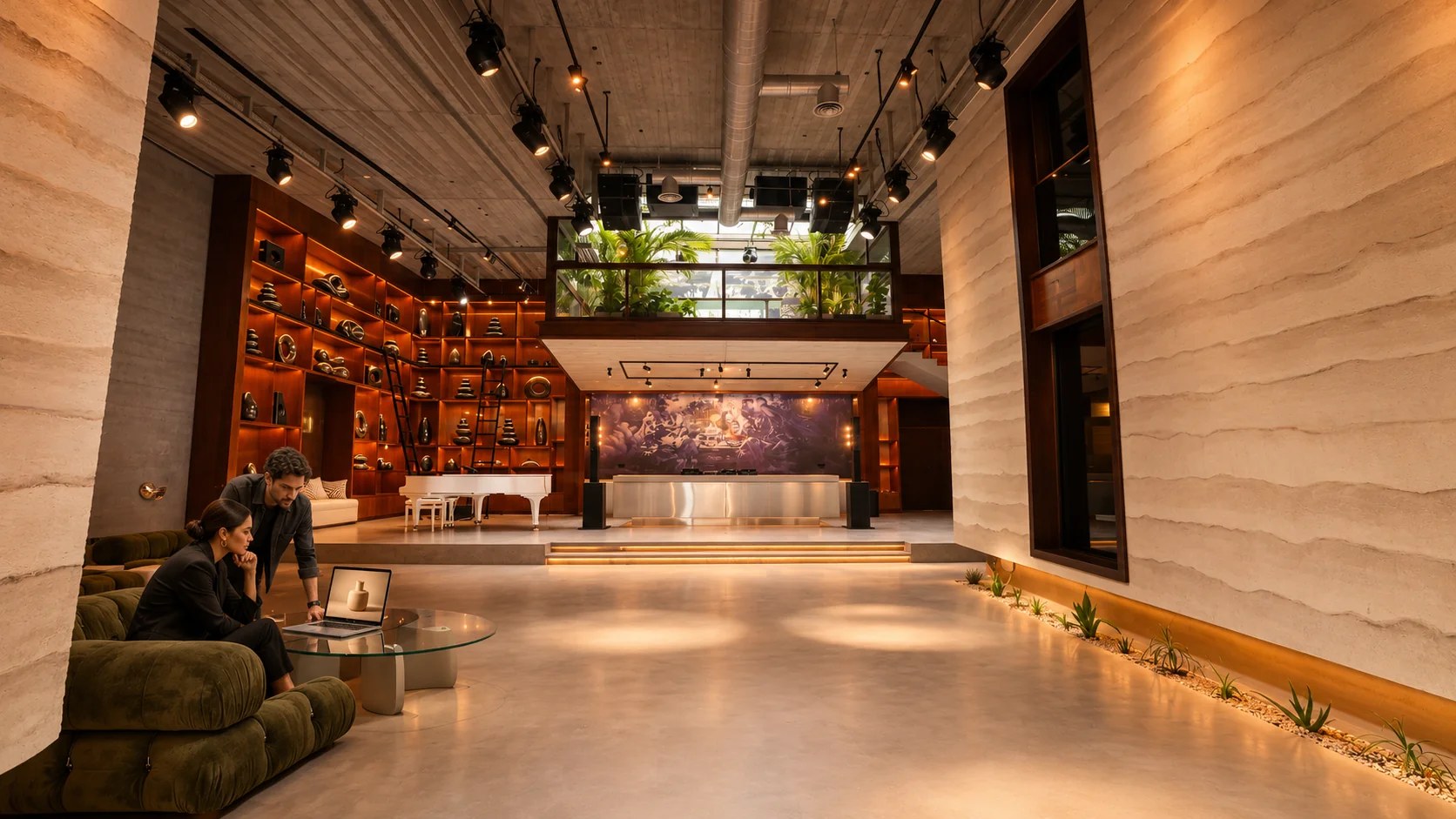
Prepare your LED screen presentation for a private Dubai event. Review slide legibility and playback files with the Someone’s House team ahead of the booking.
Your search for an LED screen event venue in Dubai should include the presentation your guests will actually watch, as well as the equipment available at the venue. Someone’s House offers a private setting in Al Quoz for corporate presentations or product launches. Screen preparation starts with the speaker’s message and the audience’s view. Your technical contact then needs the approved files early enough to test the actual playback.
Guests attending a product preview need enough visual information to follow the demonstration, while a business briefing may require close reading of a financial chart. Write down what the audience needs to understand during the presentation. Perhaps buyers need to see a material’s surface. Invited colleagues may compare two proposals. The answer determines which images deserve space on the screen and which details belong in a document sent after the event.

For example, a brand introducing a new bottle could prepare a full-screen product photograph for the opening explanation, then a close view for a discussion of the closure. The speaker can refer to the visible detail as guests examine the physical sample. Keep any technical claim tied to the brand’s approved product information.
Someone’s House’s official equipment inventory lists an INFICOLOR P1.538mm indoor LED display covering 14 square meters, along with a NOVASTAR VX1000 processor. Share your proposed presentation with the venue’s technical team and request the delivery specification for the intended display arrangement. Request the image dimensions in pixels and the accepted playback format. Confirm the usable content area for your event, with the slide template agreed for the actual configuration.
PowerPoint’s slide-size documentation describes its widescreen 16:9 option and custom dimensions, with 16:9 as the default for new presentations. Your venue’s agreed content specification takes precedence when preparing the event file. Ask the designer to establish the canvas dimensions at the start. If the canvas changes after design approval, inspect the complete presentation again to check any content that the software scales or repositions.
Your technical contact needs to know how the presentation will be delivered to the display and who will operate the playback computer during the session. Confirm the connection arrangements against the actual device you plan to use. Assign a person to supply the final presentation and another to approve the on-screen result. Discuss any extra production services during booking so the proposal describes the agreed work.
On your site visit, view a representative slide from the seats your guests are expected to occupy. Take a sample containing the smallest text your presentation genuinely needs, then read its labels from the rear seat. Repeat the check from the side. Your designer can revise the layout using what the team observes on the actual display.

AVIXA’s display-size explanation relates the visible content to the active image area and the audience’s viewing position. It considers an information element’s size relative to the displayed image. Ask the technical team to assess the proposed content against the seating arrangement. Small annotations require a separate legibility check at the rear seats.
Guests may move between a reception and a seated presentation during the same private booking, so check the view after the proposed furniture arrangement is in place. Your product pedestal can obstruct a seated guest’s view, even when the presenter can see the entire image. Place temporary displays where the speaker can refer to them, and guests retain an open view. The venue team should approve changes affecting circulation.
Slides accompanying a spoken explanation need a specific job, such as identifying the product feature currently being discussed or displaying the evidence supporting a claim. Put that information where guests can find it during the sentence. Longer supporting passages can remain in the presenter’s notes. If attendees need a detailed specification later, prepare a separate approved document for that purpose.
Charts deserve a rehearsal with the actual explanation so the audience can follow what the presenter is comparing and which period the figures cover. Retain the units and the date range beside the data. Preserve the original numerical relationships when resizing a graphic. Ask the presenter to read the chart’s claim aloud and confirm that its labels support the words being used.
Microsoft’s presentation accessibility recommendations call for sufficient text contrast and for information to be conveyed through more than color alone. Use direct labels beside chart series or categories. Review the deck with PowerPoint’s Accessibility Checker, then inspect the displayed content during the venue test.
For a private briefing containing confidential information, prepare a separate welcome image that can remain visible as guests arrive and the host checks the invited audience. Confirm which slides the presenter will use during questions. Keep any restricted financial details in the approved presentation version for the intended recipients. The person approving the deck should also review the closing image, particularly since guests may photograph the speaker after the formal presentation ends.
Test the content owner’s approved video export on the playback system that will run the event so the team can review its actual performance. Confirm the file specification with the technical team. Watch the complete clip during the test and listen to its soundtrack through the agreed audio setup.

The operator needs written instructions for the point where a video starts and the image that follows its final frame. Your presenter may introduce a film and pause for playback. The product photograph scheduled after the clip can remain visible during questions. Describe those transitions in the rehearsal notes. Agree on the spoken cue the operator will hear and rehearse the speaker’s return after the clip ends.
Captioned video can help guests follow dialogue during a presentation, and Microsoft documents captions as an accessibility feature for video content. Check the caption file or embedded captions in the tested version. Read the text from an audience seat and verify its timing against the spoken words. Any translated copy needs approval from someone qualified to assess the intended language.
The person responsible for the deck should agree a submission deadline with the House team and allow enough time for a complete technical review. Use an explicit revision name for the approved file and identify its approver in the accompanying note. Confirm that the operator has that version. Keep the production conversation within the event’s agreed-upon contact channel.
Fonts and linked media require particular attention when a presentation moves between computers, so inspect the actual playback copy during the test. Compare the opening slide with the designer’s approved reference, then inspect any slides that contain unusual typography or embedded video. Ask the team to test the agreed backup playback copy as part of the same rehearsal, with its differences documented for the presenter.
Last-minute revisions require a brief conversation to identify exactly which content changed and who approved the replacement for the live session. Replace the agreed file via the appointed operator, then repeat the affected playback test. The revised product photograph may have a different crop. Corrected financial slides need a fresh check of the figures and the labels beside them.
The presenter’s rehearsal needs the actual deck and the people who will operate the display, with enough time to practice the transitions that require a cue. Begin with the image guests see as they take their seats. Continue through the spoken introduction and any video playback. End with the approved closing image, then rehearse how the presenter invites questions.
Ask a colleague seated in the audience area to report any obscured content to the operator during the rehearsal so the team can correct the proposed setup. Keep the presenter’s position visible beside the content guests need to read. Review the lighting with the venue team using the actual presentation. Photos intended for event coverage require a separate check to ensure the display and speaker appear as intended in the camera view.
If the event includes live camera feeds, the House article on multicamera event production explains the separate preparation for those images. Your slide deck still needs its own approval. Confirm which screen content belongs in the recording and whether private material requires a restricted distribution plan. The host should approve the intended audience for any recorded presentation.
Someone’s House offers a private event address on Al Khayat Avenue where an invited audience can attend a brand presentation and continue the conversation after the speaker finishes. Share the proposed program with the House team through the booking page. Include the expected attendance and the presentation format. The team can review the screen requirements against your files, then discuss the technical preparation within the agreed booking period.
